Image to Video AI: Free Online
Upload one photo, pick a quality level and get a short MP4 with natural motion. Describe the movement in a prompt, or leave it empty and let the AI decide.
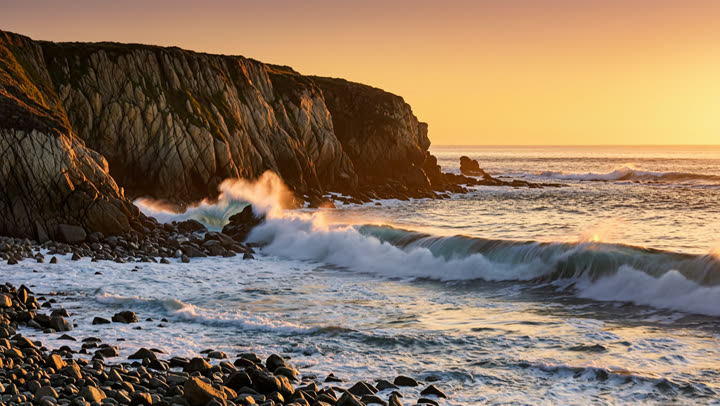
Prompt: Waves roll in and crash against the rocks, spray rises and falls, the sun sets slowly, camera static.
Drop a photo or click to upload
JPG, PNG or WebP · up to 10 MB
Sharp, well-lit photos with one clear subject work best.
Describe what should move. Leave it empty for natural, subtle motion.
Examples
Each video was made in high quality from the photo and prompt shown: 5 seconds at 720p.
Waves on a rocky shore at sunset
Prompt: Waves roll in and crash against the rocks, spray rises and falls, the sun sets slowly, camera static.
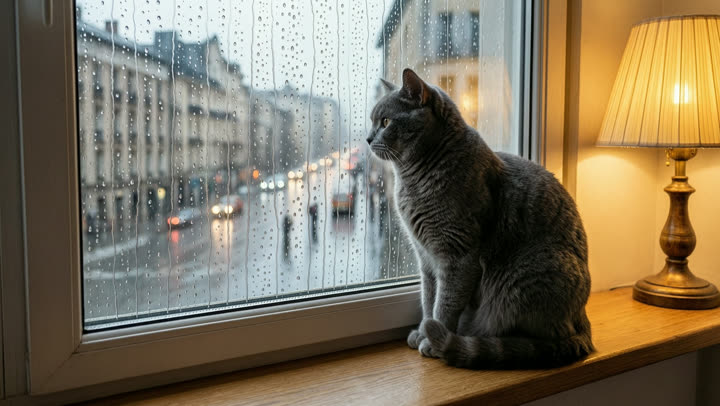
A grey cat on a windowsill on a rainy day
Prompt: Rain streams down the window, the cat slowly turns its head toward the camera and blinks, gentle movement.
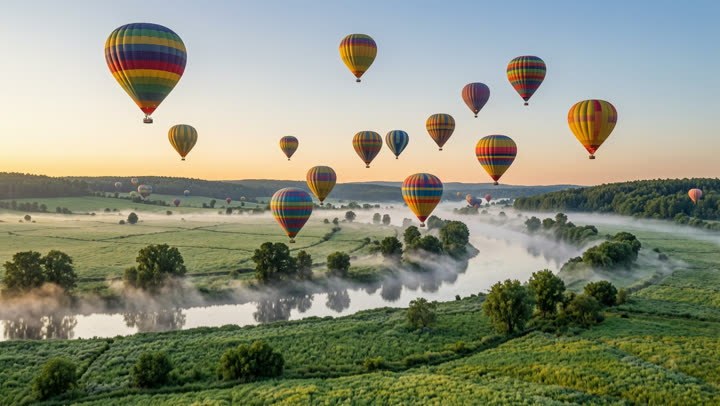
Hot air balloons over a valley at sunrise
Prompt: The hot air balloons rise slowly into the sky, burners glowing, mist drifts over the river, camera slowly pans right.
How to turn a photo into a video
Upload a photo
Drop a JPG, PNG or WebP up to 10 MB, at least 240 px on the short side. The video keeps the shape of your photo, so a vertical photo gives a vertical video.
Choose your settings
Pick high quality or fast, 720p or 1080p, and 5 or 10 seconds. Turn sound on or off, and add a short prompt if you want to guide the motion.
Generate and download
Sign in with Google and click Generate. Most videos are ready in about 1–3 minutes. Download the MP4, or find it later in My creations.
What you get
Two quality levels
High quality gives the most detail and adds sound that matches the scene. Fast is quicker, costs fewer credits and lets you switch sound off.
Clear credit costs
The Generate button shows how many credits a video costs before you start. If a video fails or takes too long, the credits go back to your account automatically.
Free credits to start
New accounts get free credits, enough to try Fast first. Videos made with free credits carry a small AI watermark in the corner; videos made with paid credits don’t.
Writing a good prompt
The prompt is optional. Without one, the AI looks at your photo and picks a motion that fits. With one, you decide what moves and how: “she turns her head and smiles”, “waves roll onto the beach” or “the camera slowly pushes in”.
Keep it short and concrete. Describe one main action, the camera movement if it matters to you, and the mood. Asking for too much in a few seconds usually gives messy results, so try one idea at a time.
High quality or fast?
Start with fast when you want to test ideas quickly or try a few versions of the same photo. Switch to high quality for the final video, when detail and smooth motion matter most, or when you want sound that fits the scene.
The credit cost depends on the quality, resolution and length you pick. The Generate button always shows the cost for your current settings.
Your photos and privacy
Unlike VivClip’s free tools, which run in your browser, AI video needs a server. Your photo is uploaded to VivClip and sent to our AI video provider, which makes the video. Videos are kept for 30 days and then deleted, so download the ones you want to keep.
Every photo is checked before generation. Photos with nudity or sexual content, children, celebrities or public figures, violence or hate aren’t allowed. If a photo is refused, your credits are refunded automatically.
Frequently asked questions
Try an effect
- Text to videoDescribe a scene and get a short video with sound. No photo needed.From 36 credits
- Pet danceYour cat or dog stands up and dances.9 credits
- Old photo animationPeople in old photos blink, breathe and smile.9 credits
- Fruit cuttingA knife slices the object open to show juicy fruit inside.9 credits
- Earth zoom outThe camera pulls back from your photo all the way to space.9 credits
- AI danceThe person in your photo breaks into a dance.9 credits
- AI muscleFlex and grow a bodybuilder physique.9 credits
- BabyfiedSee an adult turn into a toddler version of themselves.9 credits
- AI ageWatch a face age by decades in five seconds.9 credits
- AI cakeA knife slices in and it was cake all along.9 credits
- Bullet timeTime freezes and the camera circles the moment.9 credits
- AI inflateYour subject puffs up like a balloon and floats away.9 credits
- Product spinYour product turns on a turntable under studio lights.9 credits