Animate Old Photos With AI
Upload an old portrait and watch the people in it blink, breathe and smile. The effect brings old photos to life while keeping their original colors and grain, so it still feels like the same picture.
Drop a photo or click to upload
JPG, PNG or WebP · up to 10 MB
Flat scans or straight phone photos of the print, with clear faces, work best.
Examples
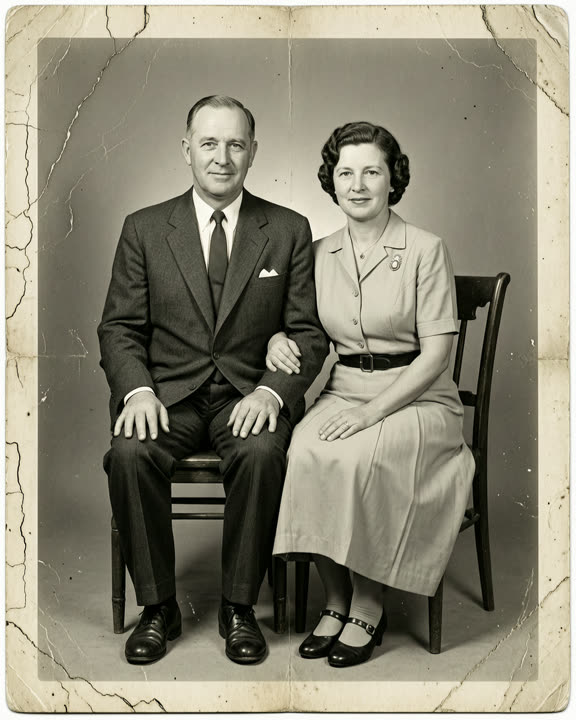
Real results from this effect. We made the photos ourselves with AI, so no real people are shown.
A black-and-white 1950s portrait of a seated couple
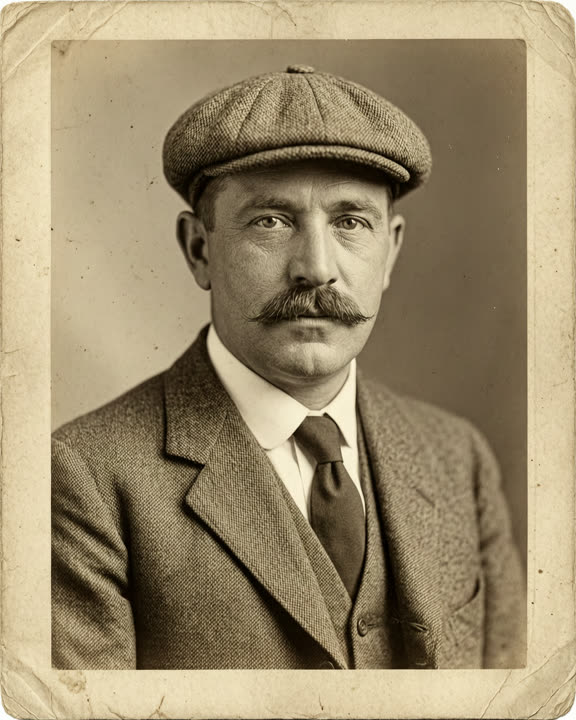
A sepia 1920s portrait of a man in a flat cap
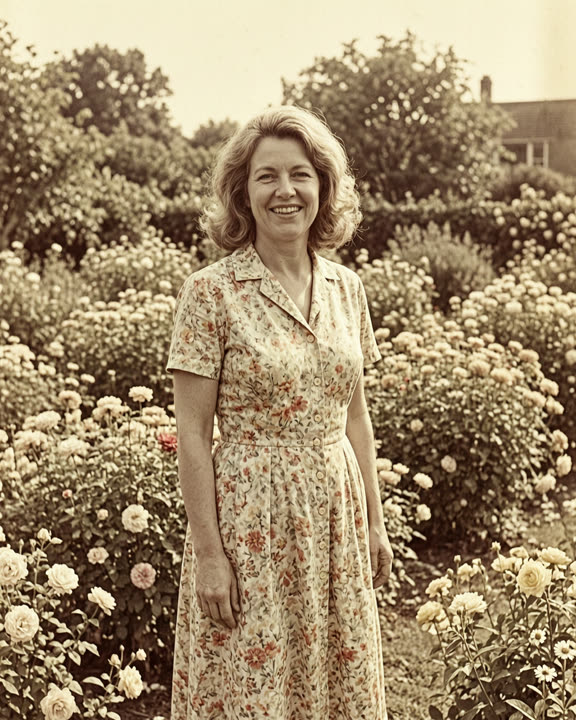
A faded 1970s snapshot of a woman in a flower garden
How to animate an old photo
Scan or photograph the print
Use a scanner or take a straight, glare-free phone photo of the print. Save it as a JPG, PNG or WebP up to 10 MB.
Upload and generate
Drop the photo above, sign in with Google and click Generate. The button shows how many credits the video costs before you start.
Download the video
Your animated photo is usually ready in about 1–3 minutes. Download the MP4 or find it later in My creations.
Why animate old photos here
Gentle, natural motion
Faces move a little, the way people do while posing for a photo: a blink, a breath, a soft smile. Nothing dramatic or out of character.
Keeps the original look
Black-and-white stays black-and-white, and sepia stays sepia. The effect animates the photo instead of restyling or colorizing it.
Nothing to type
The motion is already set. Upload the photo and generate; you get a 5-second 720p video that keeps the photo’s shape.
Scanning tips for the best result
The clearer the faces, the more natural the motion. A flat scan at a good resolution is ideal; take the photo out of its frame or album sleeve first so the glass or plastic doesn’t add glare. If you photograph a print with your phone, turn off the flash, use soft daylight, hold the phone parallel to the photo and fill the frame. The short side of the image needs to be at least 240 px.
Portraits of one or two adults facing the camera give the most reliable results. Large group photos with tiny faces, heavy scratches over the eyes or strong blur are harder for the AI, and the result may look less natural. You can crop a group photo down to one or two people first. Results vary from one try to the next, so if a face looks wrong, generate again.
Which photos you can use
Use photos of adults: your grandparents’ wedding portrait, a parent’s graduation photo or an old family picture of grown-ups, including relatives who have passed away. Photos of children aren’t allowed, even in old family pictures, and neither are photos of celebrities or public figures. Every photo is checked before generation, and if one is refused, your credits are refunded automatically.
To make the video, your photo is uploaded to our servers and sent to our AI video provider, which makes the video. Videos are kept for 30 days and then deleted, so download any you want to keep. When you share an animated photo of a real person, especially someone who has passed, it’s kind to tell family members it was made with AI.
Frequently asked questions
More AI effects
- Pet danceYour cat or dog stands up and dances.9 credits
- Fruit cuttingA knife slices the object open to show juicy fruit inside.9 credits
- Earth zoom outThe camera pulls back from your photo all the way to space.9 credits
- AI danceThe person in your photo breaks into a dance.9 credits
- AI muscleFlex and grow a bodybuilder physique.9 credits
- BabyfiedSee an adult turn into a toddler version of themselves.9 credits
- AI ageWatch a face age by decades in five seconds.9 credits
- AI cakeA knife slices in and it was cake all along.9 credits
- Bullet timeTime freezes and the camera circles the moment.9 credits
- AI inflateYour subject puffs up like a balloon and floats away.9 credits
- Product spinYour product turns on a turntable under studio lights.9 credits